Uploading media
The Medipim API allows you to upload images and PDF files through the upload media item endpoint. Uploaded media is stored as a media item and can be linked to one or more products.
Permissions
Only users with the organization manager role can upload media. If your API key does not have the required permission, the upload endpoint will return a 403 error (see Error handling).
How to upload
Send a POST request to /v4/media/upload. The file can be sent in two ways: as JSON with a Base64-encoded file, or as a multipart form data request. You can optionally include a products array of product IDs to immediately link the uploaded media item to those products.
Option 1: JSON with Base64-encoded content
This approach sends the file as a regular JSON request. The file's contents are converted to a text string using Base64 encoding — a standard way to represent binary data (like an image) as plain text. The request body includes a file object with name (the original filename) and content (the Base64-encoded string).
Most languages have a built-in function for Base64 encoding:
| Language | Function |
|---|---|
| PHP | base64_encode(file_get_contents('photo.jpg')) |
| Python | base64.b64encode(open('photo.jpg', 'rb').read()).decode() |
| Node.js | fs.readFileSync('photo.jpg').toString('base64') |
| bash | base64 -i photo.jpg |
Example request body:
{
    "file": {
        "name": "ean_5400117000014-pa-front.jpg",
        "content": "/9j/4AAQSkZJRg..."
    },
    "products": ["product-id-1"]
}
Option 2: Multipart form data
Multipart form data is the standard way web browsers upload files — it sends the raw file bytes directly instead of encoding them as text. This is more efficient for large files because the data doesn't need to be Base64-encoded (which increases the size by about 33%).
With multipart form data, you set the Content-Type header to multipart/form-data (most HTTP libraries do this automatically) and attach the file in a field called file.
Example using curl:
curl --user apiKeyId:apiKeySecret \
     --location \
     --request POST https://api.medipim.be/v4/media/upload \
     --form file=@photo.jpg \
     --form 'products=["product-id-1"]'
Example using Python:
import requests

response = requests.post(
    "https://api.medipim.be/v4/media/upload",
    auth=("apiKeyId", "apiKeySecret"),
    files={"file": open("photo.jpg", "rb")},
    data={"products": '["product-id-1"]'},
)
Automatic product linking via file name
When you upload a media item, Medipim can automatically link it to the right product based on the file name. If the file name contains a recognized product identifier, the system matches it to the corresponding product and creates the link for you — no need to specify product IDs manually.
The file name is parsed using - as a separator. Each segment is checked for product codes, photo types, visible sides, and languages. The order of the segments does not matter — the parser classifies each segment independently. An optimal file name looks like this:
ean_0123456789101-cnk_1234567-pa-nl-fr-front-left.jpg
The following segments are recognized:
Product identifiers (prefix + underscore + value):
ean_0123456789101— EAN/GTIN codecnk_1234567— CNK number- Other region-specific codes (e.g.
pzn_,cip13_) may also be supported
Photo type (short code):
pa— packshotpr— productshotpi— pillshotls— lifestyle image
Languages:
nl,fr,en,de, etc.
Visible sides:
front,back,left,right,top,bottom
Avoid special characters such as &é"'(§è!çà) and spaces in the file name.
The photo type, visible sides, and languages of an uploaded media item are determined entirely from the file name — there is no separate field in the upload request to set them. The media type (photo vs. link) is determined by the file format: images become photos, PDFs become links. See Media types for a full overview of all types and image guidelines.
Image guidelines for uploading
General guidelines
All uploaded images should meet the following minimum requirements:
- Format: JPEG is recommended. Use PNG only when transparency is needed (e.g. for frontal shots). PNG files are significantly larger and not optimized for web or webshop use.
- Resolution: at least 1500 x 1500 pixels.
- Aspect ratio: square (not rectangular).
- Background: white or transparent.
- File name: always include at least one product identifier (e.g. the EAN number). Avoid special characters and spaces.
Visible sides
When photographing a product, indicate which sides are visible in the file name. This helps the platform organize and display your images correctly.
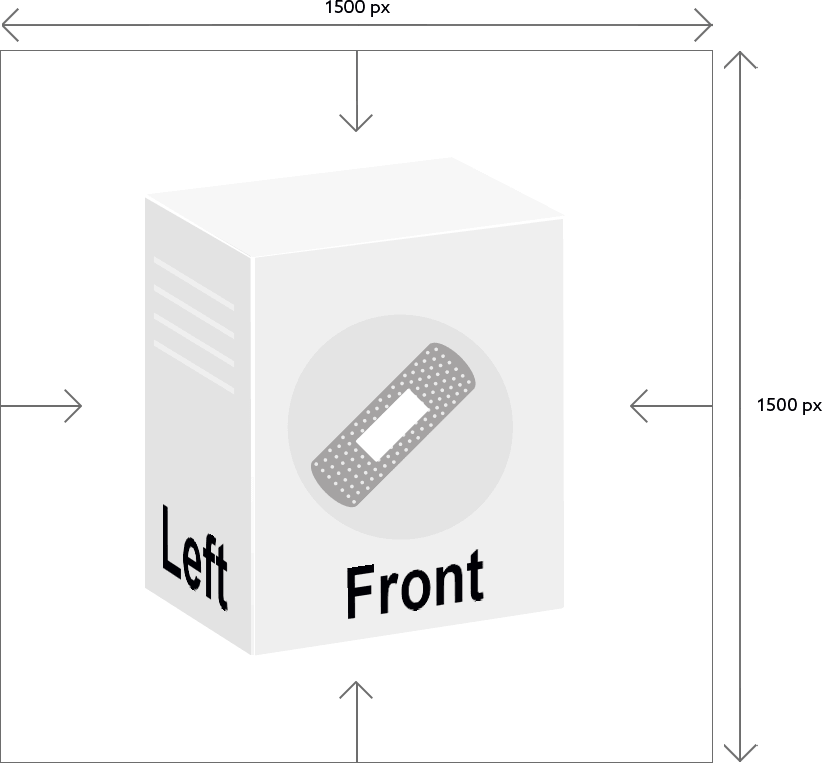
Use the following codes in the file name: front, back, left, right, top, bottom.
Packshots
Packshots are images of the product packaging. The packaging should be photographed at an angle of approximately 30°.

Requirements:
- JPEG format
- At least 1500 x 1500 pixels, square
- White or transparent background
- Photographed at a 30° angle
Product shots
Product shots are images of the product itself, outside of or within its packaging (e.g. a bottle, tablet, brace, etc.).
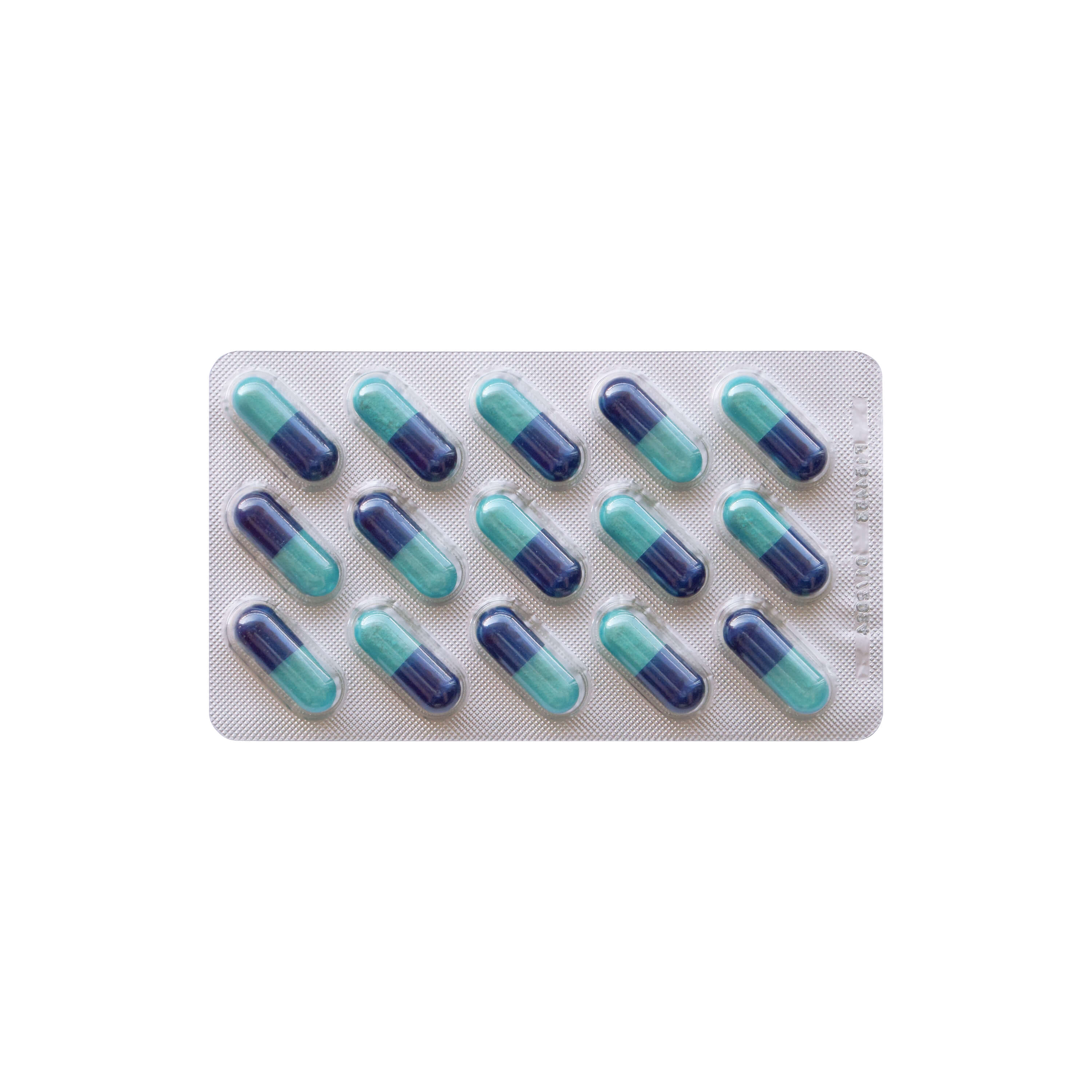
Requirements:
- JPEG format
- At least 1500 x 1500 pixels, square
- White or transparent background
Pillshots
A pillshot is an image of the pill or tablet that is inside the packaging.
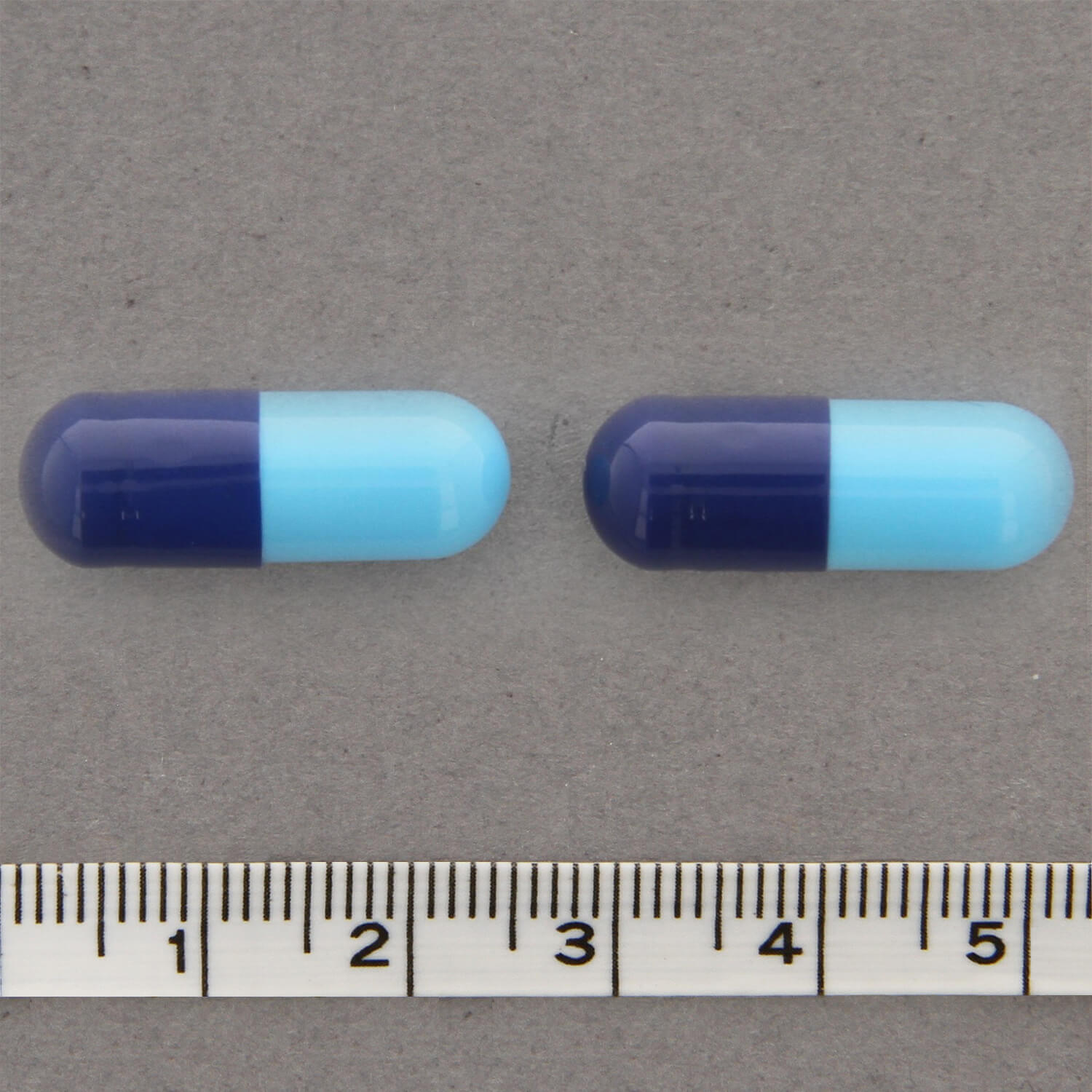
Requirements:
- JPEG format
- At least 1500 x 1500 pixels, square
Lifestyle images
A lifestyle image is any image that does not fall into the packshot, product shot, pillshot, or frontal shot categories. These are typically marketing or contextual images.
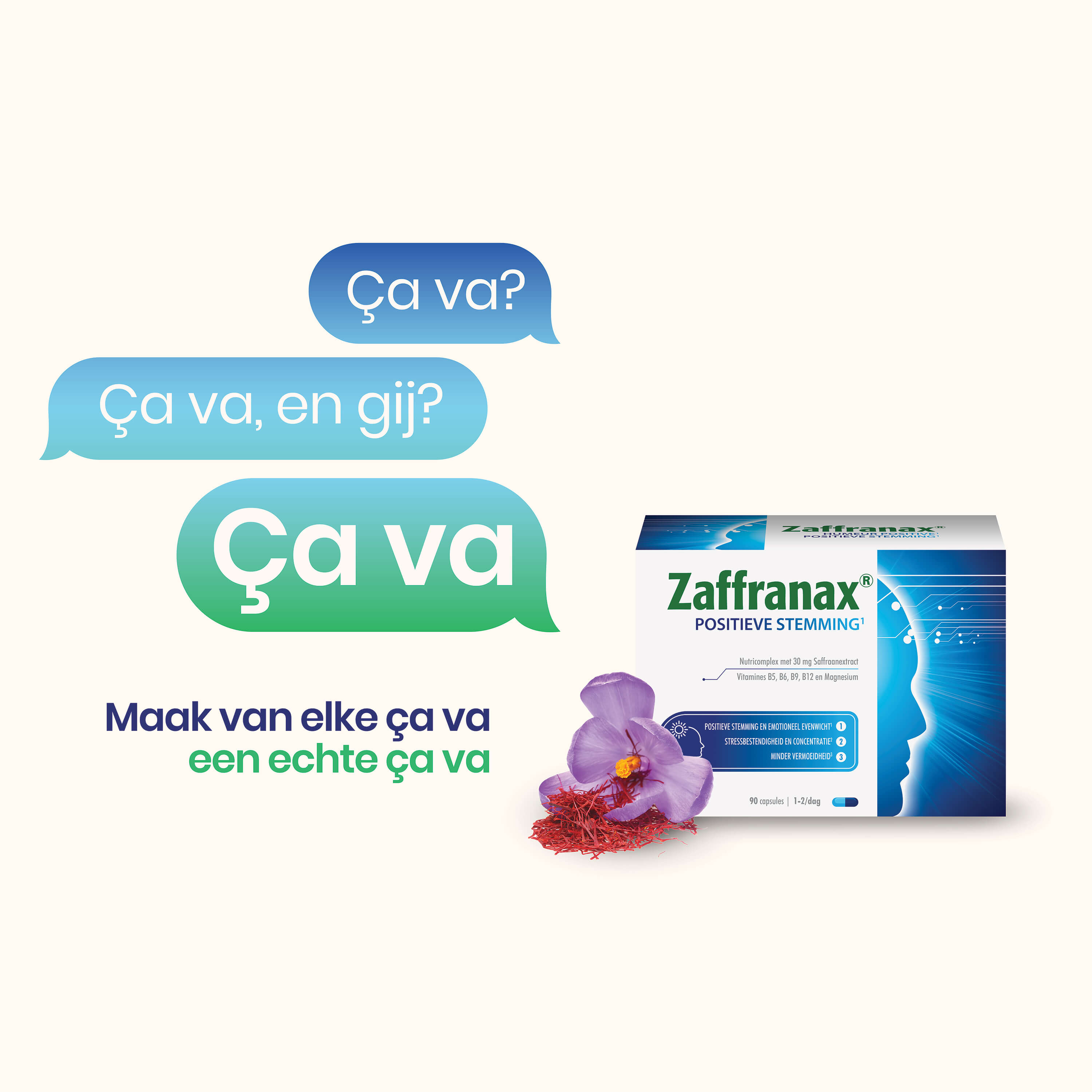
Requirements:
- JPEG format
- At least 1500 x 1500 pixels, square
Frontal shots
Frontal shots are not a separate photo type — they are a selection of packshots or product shots that meet specific criteria to be suitable for use on touchscreens and marketing tools.
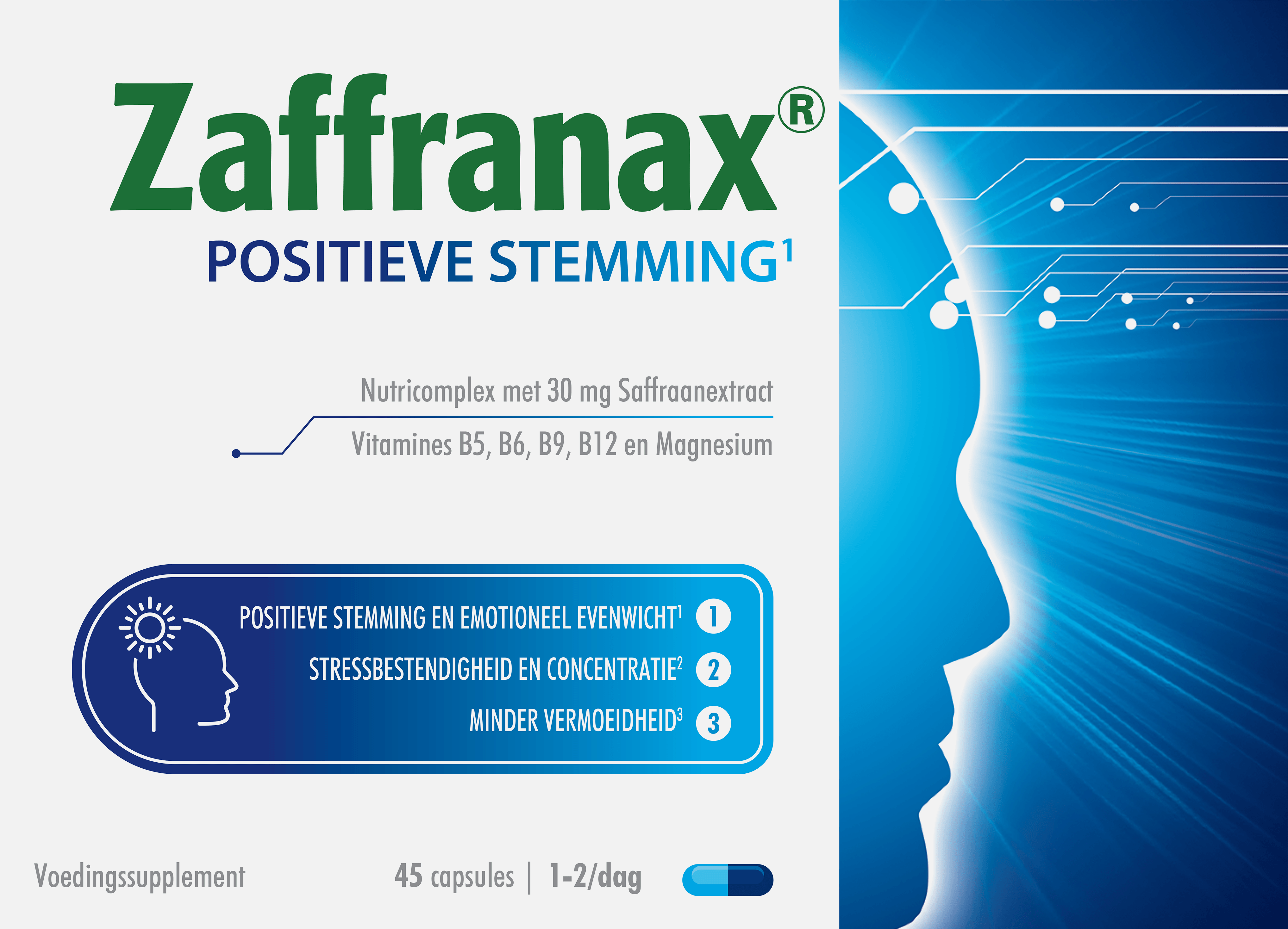
A photo qualifies as a frontal when all of these criteria are met:
- The photo type is packshot or product shot
- The format is transparent PNG
- The only visible side is front
Brochures (PDF)
Brochures must be uploaded in PDF format (not .doc, .docx, .xlsx, .pptx, etc.) and should not exceed 20 MB.